Module K-04
The Konverge copilot answers questions about your project with cards and charts, and proposes actions as drafts. It never writes on its own: a person confirms every action, and each change gets the same permission checks and audit log as one made by hand (and, in the phone apps, the same offline saving). It runs on Google’s AI models from our servers and asks for consent before first use.
14 days free · card required · cancel before day 15 and pay nothing
- Module
- K-04
- Status
- Supported
- Included
- 7 parts
- Trial
- 14 days free, card at sign-up
07 parts
Part of the supported product: the part we sell and stand behind today, with full support.
- AskK-04.01
Answers you can tap
Ask what is overdue, what is waiting on you, or what changed on level 3. Replies come as a short summary plus record lists, stat tiles, mini charts and drawing thumbnails that open the real screen.
- DraftK-04.02
Draft, then confirm
Ask it to log a snag or chase a sub and it drafts the record in an editable card. Nothing is saved until you confirm. 103 kinds of action across field ops, projects, contacts, documents, finance and admin.
- TiersK-04.03
Three safety tiers
Reversible writes get one confirm card. Status changes, money and anything a client sees are itemised, max 20, ticked one by one. Deletes and removing people get a red card, one item at a time.
- PhotoK-04.04
Photo to record
Take a photo, tap Ask AI, and the copilot drafts a snag, note or daily log from what it sees. On confirm, the photo is linked to the record.
- VoiceK-04.05
Voice capture (beta)
A glove-sized microphone button transcribes on our servers. The transcript lands in the input for you to read before anything is sent. In the phone apps, recordings queue offline. Beta-labelled until proven on site hardware.
- FocusK-04.06
Project in focus
A pill keeps the copilot on the project you are in, without hiding the rest of your company.
- HonestK-04.07
Works without it
If the copilot is unavailable, a banner says so and every manual path still works. Proposals that need a connection are kept as drafts until you are back online.
On a drawing
An illustration from the showcase workspace: click a finding, pick a question, tap the drawing region, then confirm or discard the draft.
The assistant on a drawing
01 / 04 · Read
It reads the sheet you have open
Title block, revision, grid and every reference on the drawing, in the browser and on the phone.
[ Scroll to continue ]
02 / 04 · Flag
It flags what doesn’t add up
Set review checks the whole drawing set: references to sheets that are not there, doors missing from the schedule, revisions out of step.
[ Click a finding ]
03 / 04 · Ask
Ask it in plain words
Answers come from your own records, with the part of the drawing to look at. Tap it and the sheet zooms there.
[ Pick a question ]
04 / 04 · Confirm
Nothing changes until you confirm
It drafts the RFI, the task or the change and shows exactly what will be saved. It goes through the same permissions and audit trail as you would.
[ Try confirm ]
Illustration · showcase workspace
1Set review · reference
Stair callout points to an old detail
This plan calls the stair up to detail 5 on A-501. A-501 is now at Rev B, where the stair balustrade is detail 7.
2Set review · schedule
Door D-12 is missing from the schedule
D-12 is drawn on this plan but has no row in the door schedule on A-601, so it has no fire rating or hardware set.
3Set review · revision
Structural set still on Rev B
A-201 was issued at Rev C on 9 Oct. S-201, the slab below it, is still at Rev B.
On the phone
Real captures from the demo workspace in the Android app, coming soon to Google Play and the App Store. Until then, the same records work in a phone’s browser, with a connection.
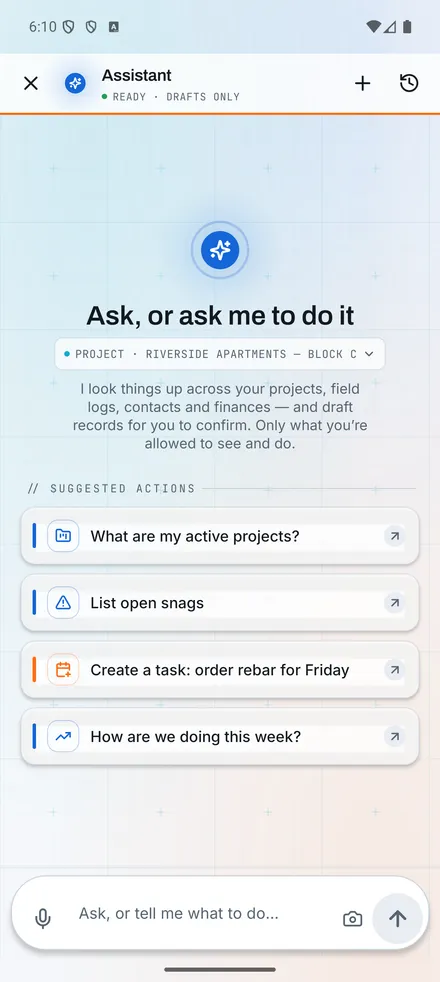
Assistant[01]
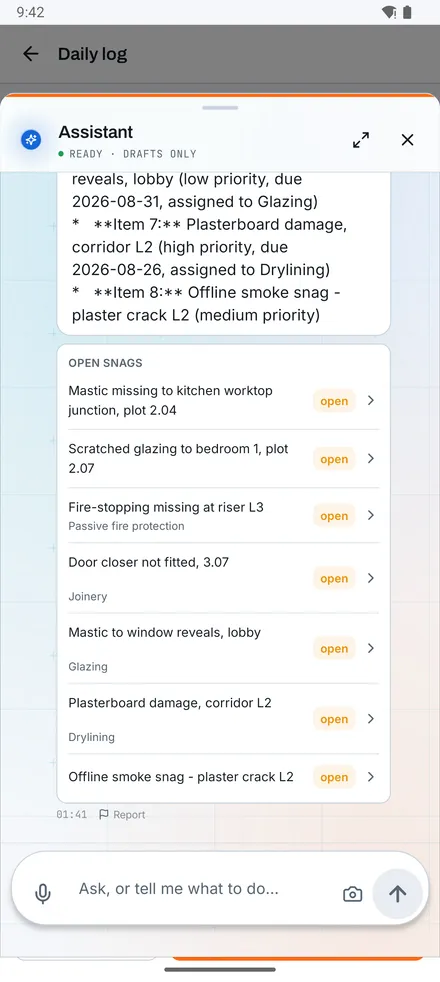
Assistant answer[02]
2 captures
Captured from the demo workspace. Start a trial to see it with your own job.
Questions
01Which AI model does Konverge use?
Google’s AI models, called from our servers, never from inside the app. Your content is not used to train Google’s models under the API terms we use, and you consent in the app before the first use. Your company can switch AI features off.
02Can the AI delete something?
Only through a red, single-item confirmation that you tap. Company and account deletion are excluded from the copilot entirely.
03Does it work offline?
Asking needs a connection. In the phone apps, drafts that can be executed through the offline queue are kept; the rest wait with the draft preserved until you reconnect.
14-day free trial with your card at sign-up: cancel before day 15 and you pay nothing. Bring a live job, your drawings and your team, and see it on site the same day.