Office on the web
Konverge runs on a laptop for the people at a desk: estimates, change orders, finance and reports, documents and drawings, the team, a client portal and a full data export. It is the same workspace the site uses on the phone, so nothing is typed twice.
14 days free · card required · cancel before day 15 and pay nothing
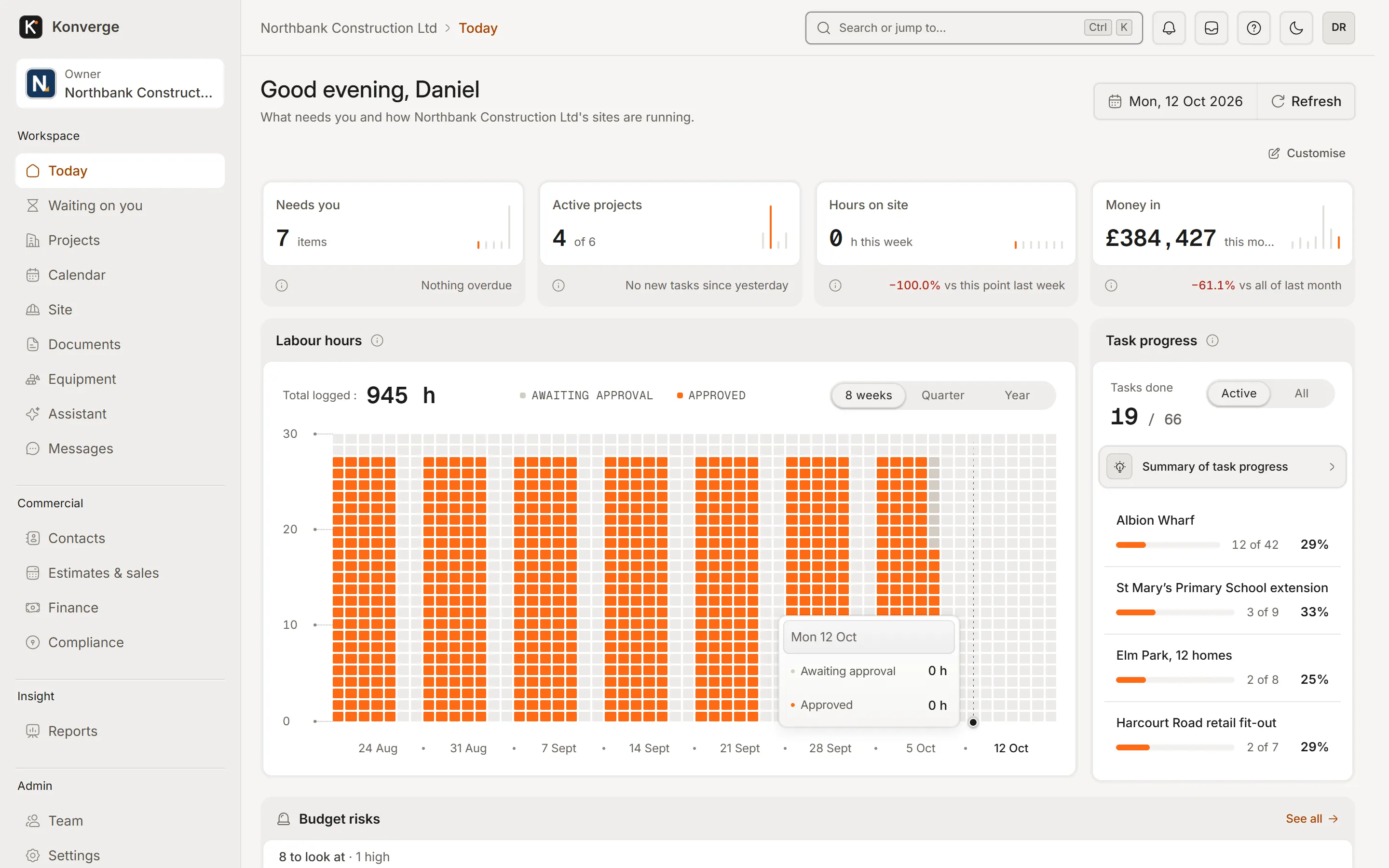
Today, the first screen of the day
- Address
- app.getkonverge.com
- Sign-in
- A code by email or phone
- Works with
- Phone browsers today; iPhone and Android apps coming soon
- Included
- In every plan
A day at the desk
A day in the showcase workspace, from the first coffee to the director’s question at half four.
Step 01 / 05/projects
Every live job, one list
Progress, open tasks and snags, the finish date and the last activity for each project, sorted the way you need and exported in a click.
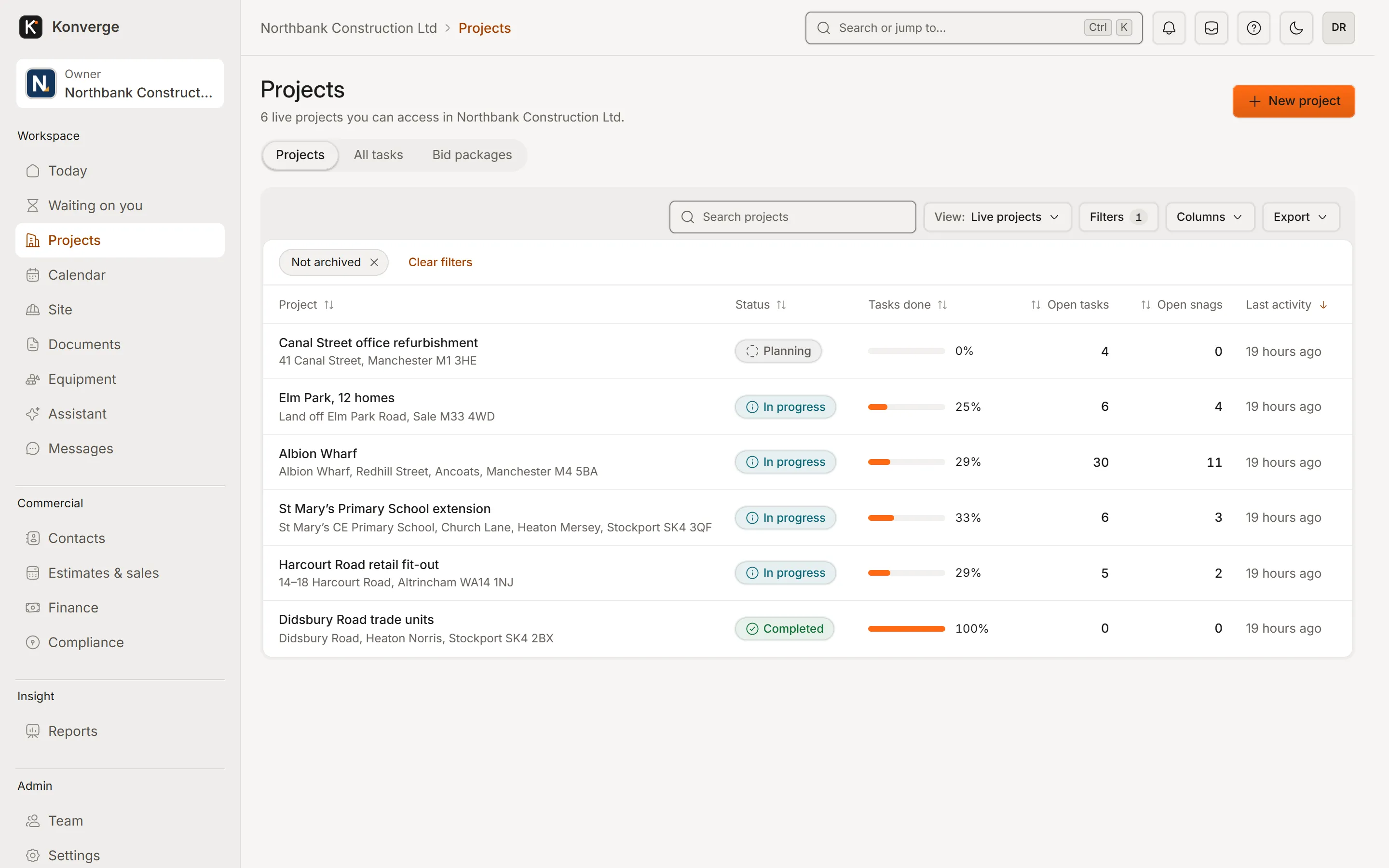
Fig. 01Every live job, one list
- 1Filter, sort and export
- 2Progress and open items per job
Step 02 / 05/p/albion-wharf/site/snags
What site sent in overnight
Snags, daily logs, inspections and incidents from the phones, filtered by owner, priority or overdue.
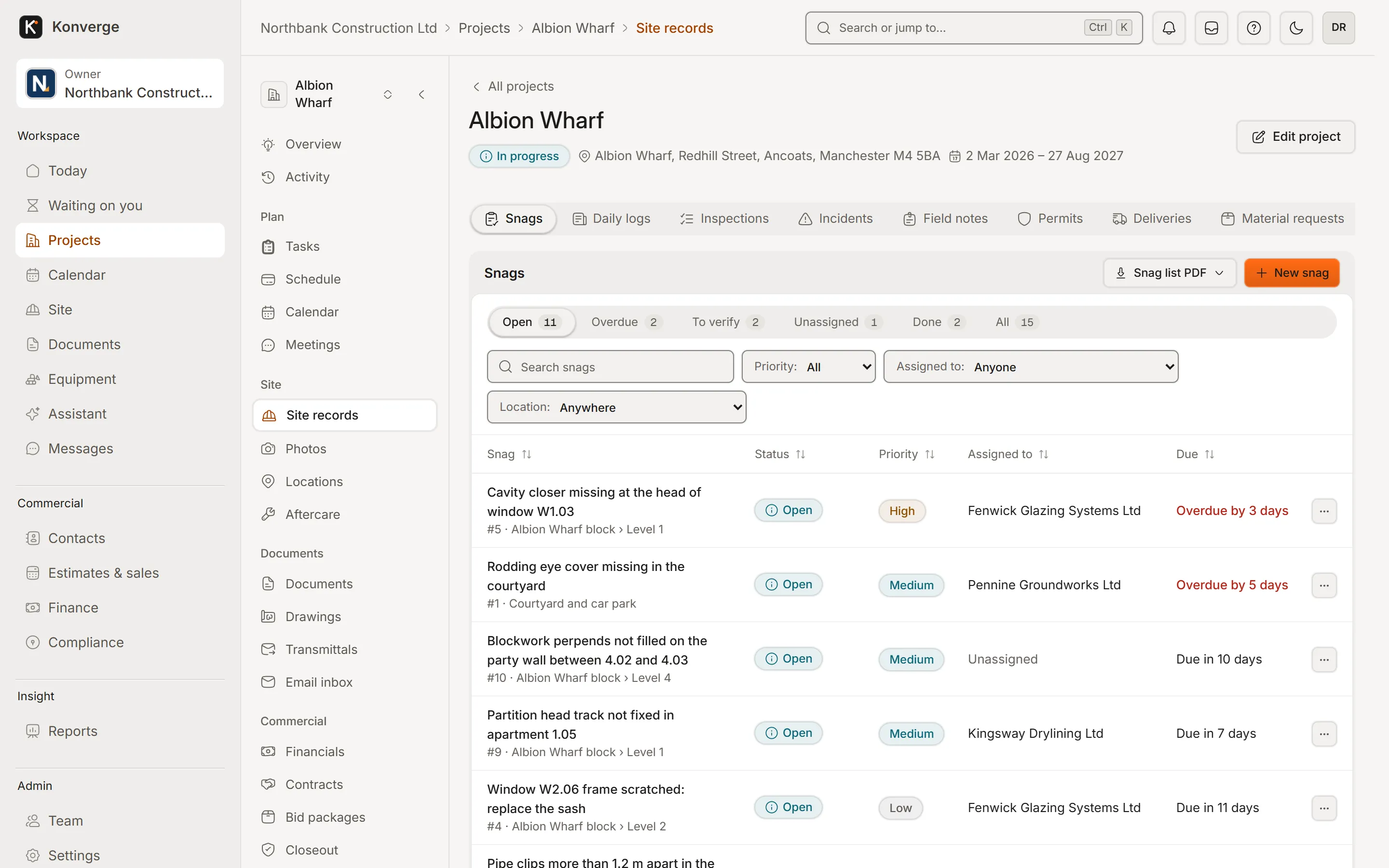
Fig. 02Snags sent in from site
- 1Every kind of site record, one place
- 2Filter by status, priority, owner
- 3Overdue in red, an owner on every row
Step 03 / 05/p/riverside/drawings/s-301
The sheet, at desk size
Open S-301 in the same drawing viewer as the phone. Check the markups, the pins and the revision before the RFI goes out.
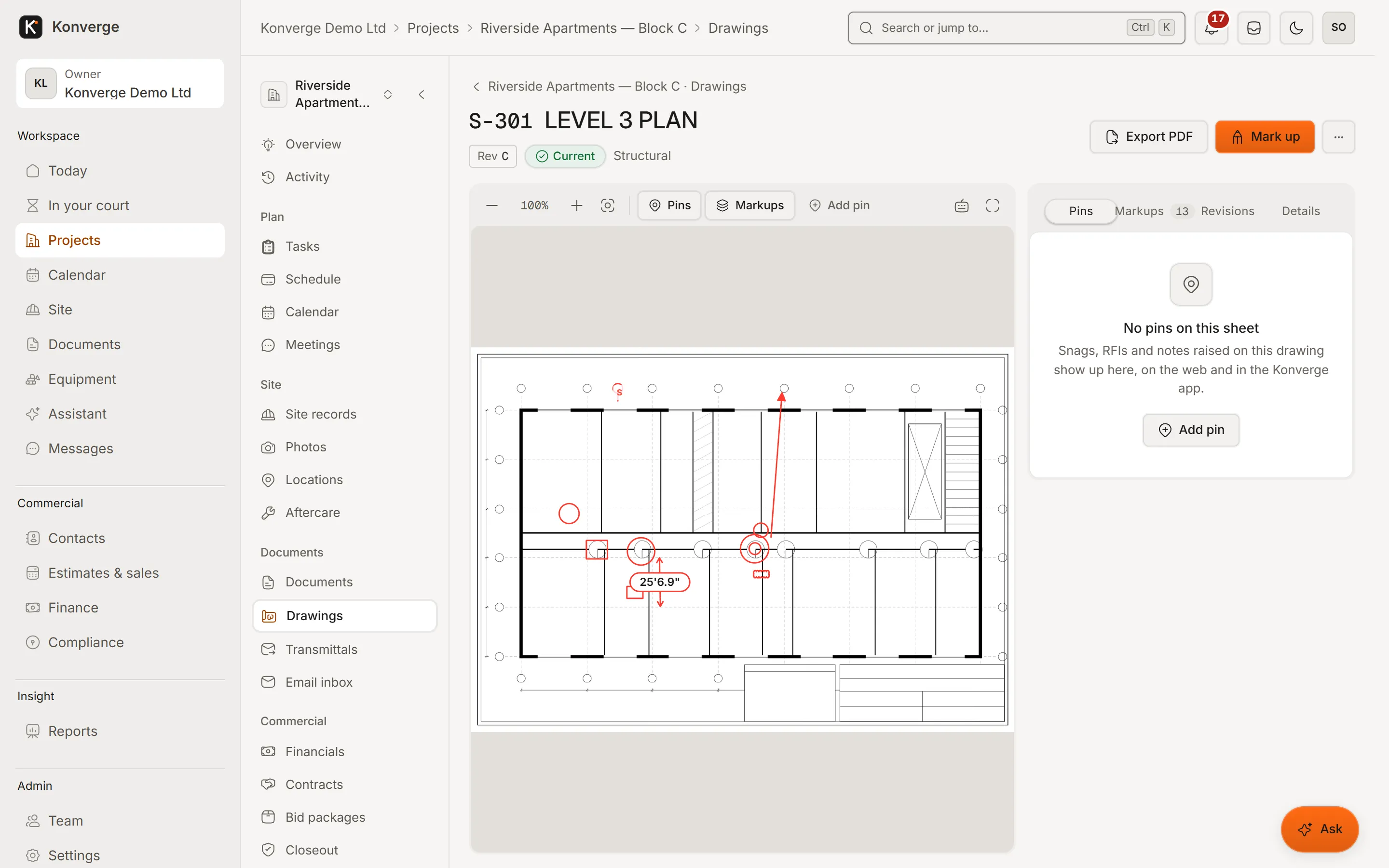
Fig. 03A sheet in the browser viewer
- 1Full sheet, markups, dimensions
- 2Pins, markups and revisions
Step 04 / 05/finance
Where the money is
Income and costs, what you are owed and what you owe, month by month, with payment applications, CIS and aged debt one tab away.
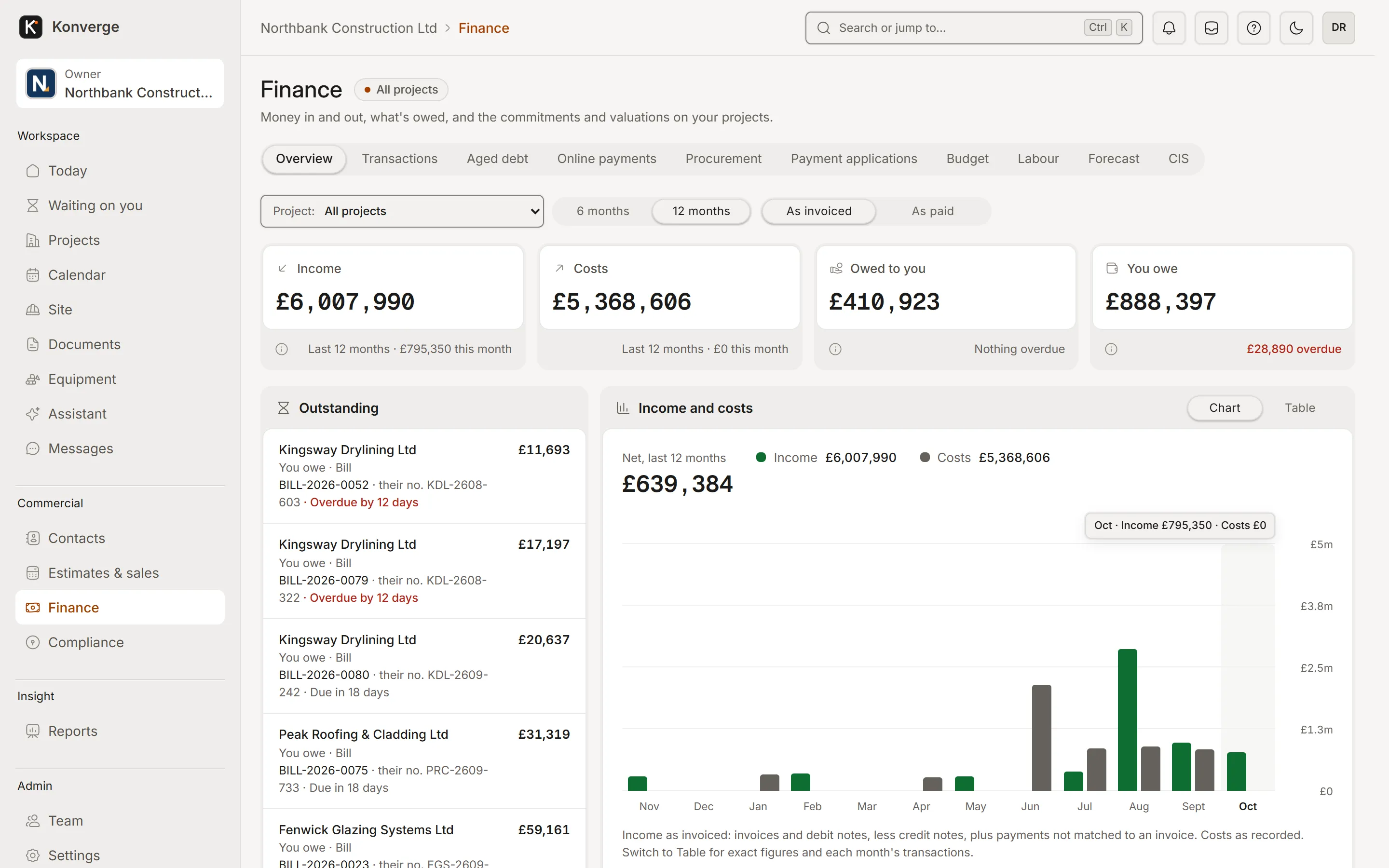
Fig. 04Finance across every project
- 1Income, costs, owed and owing
- 2Month by month, invoiced or paid
- 3Outstanding bills, with due dates
Step 05 / 05/reports
The questions directors ask
Portfolio health, programme, commercial exposure, work in progress and cash flow: each report answers one question and exports to CSV.
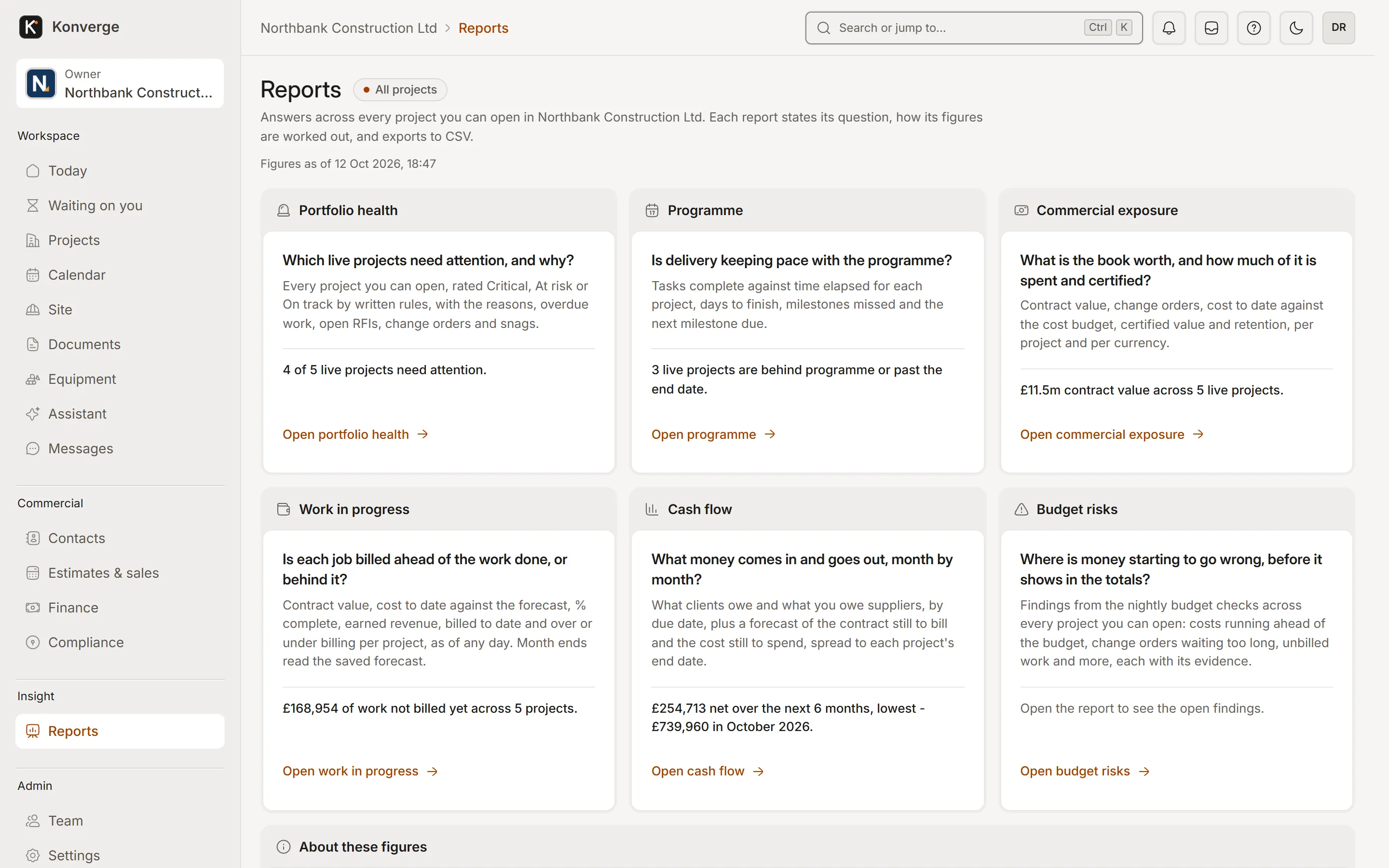
Fig. 05Reports that answer one question each
- 1The question, then how it is worked out
- 2A live figure on every card
10 areas
Everything the office needs in one browser tab, with the same roles and permissions as the phone.
- TodayW.01
What needs you, first thing
Today is arranged for your role: approvals, what is overdue, active projects and the money at a glance, across every project you are on.
- ProjectsW.02
The project hub on a big screen
Overview, tasks and milestones, the programme, crew bookings and timesheet approvals, the team, activity and financials.
- Site reviewW.03
Everything site captured
Every daily log, snag, inspection, incident, note and photo the phones send in, filtered by project and status, ready to review from a desk.
- DocumentsW.04
Documents and drawings
Upload documents and drawing sets, work through folders and restore from trash. A set goes up as one PDF and is split into sheets for you. Open any sheet in the same drawing viewer as the phone, add a revision, compare revisions, and see pins and markups.
- CommercialW.05
Estimates to payment applications
Estimates you can print, change orders, leads, purchase orders, subcontracts, budget, transactions and payment applications. Early-access modules keep their badge.
- ReportsW.06
Reports you can take away
Portfolio, commercial and programme reports, and the transactions register, export to CSV.
- ClientsW.07
A client portal
Clients open their quotes, change orders, payment applications and the documents you share, and accept or approve them online with a signature.
- TeamW.08
People, roles and the audit log
Invite people, set roles and project access, and see an audit log of who changed members, roles and billing. Owners and admins only.
- ExportW.09
All your data, in one download
Settings, Export data: one ZIP with a spreadsheet (CSV) for every register and, if you want them, the document files, in a folder per project.
- AssistantW.10
The same assistant
Ask about your projects and get records you can open. It drafts, and a person confirms, exactly as on the phone.
On the phone
The web app is for the desk. Site work belongs on the phone, where the iPhone and Android apps (coming soon) are built for gloves, cameras and no signal. Until they arrive, the web app works in a phone’s browser with a connection, and drawing sets upload from the web.
- 01Capturing on site: one capture button, photos with location, and voice notes
- 02Working with no signal: records queue on the phone and sync later
- 03Downloading drawing folders to open with no signal
Questions
01Is it the same account as the phone app?
Yes. One account, one company workspace, the same roles and permissions. Sign in with a code sent to your email or phone, and add another sign-in method from your settings. The iPhone and Android apps are coming soon; until then, the web app works in your phone’s browser.
02Does the web app cost extra?
No. Every plan includes the web app, and the iPhone and Android apps when they arrive. Every self-serve plan starts with a 14-day free trial: your card is taken at sign-up and charged on day 15 unless you cancel.
03Does it work offline?
No. The web app needs a connection. If it drops, the page says so and keeps what was on screen until you are back. Working without signal is the phone’s job.
04Which browsers does it support?
Current versions of Chrome, Edge, Firefox and Safari, on a laptop or desktop. It also works on a tablet.
05Can I switch on two-step verification?
Not yet. Today you sign in with a one-time code sent to your email or phone, so there is no password to leak. Two-step verification with an authenticator app is coming; the security page will say when it is switched on.
14-day free trial with your card at sign-up: cancel before day 15 and you pay nothing. Bring a live job, your drawings and your team, and see it on site the same day.