Module K-01
Konverge prepares every drawing for the phone, so an A0 sheet pans and zooms at full resolution, and in the iPhone and Android apps (coming soon) it stays on the device for the site cabin. Markups, pins, revisions, QR sheet links, RFIs and approval workflows sit on top of the same sheet, and in the apps every one of them queues when there is no signal.
14 days free · card required · cancel before day 15 and pay nothing
- Module
- K-01
- Status
- Supported
- Included
- 11 parts
- Trial
- 14 days free, card at sign-up
11 parts
Part of the supported product: the part we sell and stand behind today, with full support.
- ViewerK-01.01
Opens like a map, not a PDF
Sheets are prepared on our servers the way online maps are, so only the part you are looking at loads. Pan and zoom stay smooth on any phone, even on the largest sheets.
- MarkupK-01.02
Mark it like a drawing
Pen, highlighter, line, arrow, rectangle, circle, revision cloud, text, stamps (approved, rejected, revised, reviewed, void) and a measure tool you calibrate once per sheet in feet, metres, inches or centimetres.
- PinsK-01.03
Nine kinds of pin
Task, issue, observation, photo, RFI, snag, inspection, info and question. Each carries photos, attachments, a checklist and its own thread, and can become a task.
- VersionsK-01.04
Revision C over revision B
Upload a new revision and carry the markups forward. Stack two revisions with an opacity slider to see exactly what changed.
- QR linksK-01.05
Print the sheet link on the board
Every sheet has a link and a QR code. Scanning it opens the current revision in the app, for signed-in members of the project only.
- OfflineK-01.06
Download a folder for the week
In the phone apps (coming soon), pin a sheet or a whole folder, subfolders included. Pinned sheets stay on the phone until you unpin them, and folders open with no signal.
- SearchK-01.07
Search that finds it
Find a sheet by its number or name, search the text inside every uploaded document, and see related documents that match what you meant, not just what you typed.
- InboxK-01.08
What is waiting on you
A company-wide inbox of documents awaiting your review or approval, across every project you are on.
- RFIsK-01.09
RFIs with a thread
Spec section, response due date, cost and schedule impact, the linked drawing, a discussion, and an official answer recorded by whoever holds the ball.
- ExportK-01.10
Layered PDF export
Export a sheet, or a batch, as a PDF whose markups, pins and links are separate layers you can toggle in Acrobat.
- ControlK-01.11
Access rules and audit trail
Priority-ordered allow and deny rules per company or per project, trash with restore, and an audit trail of every change.
Sheet S-301 · Level 3 plan
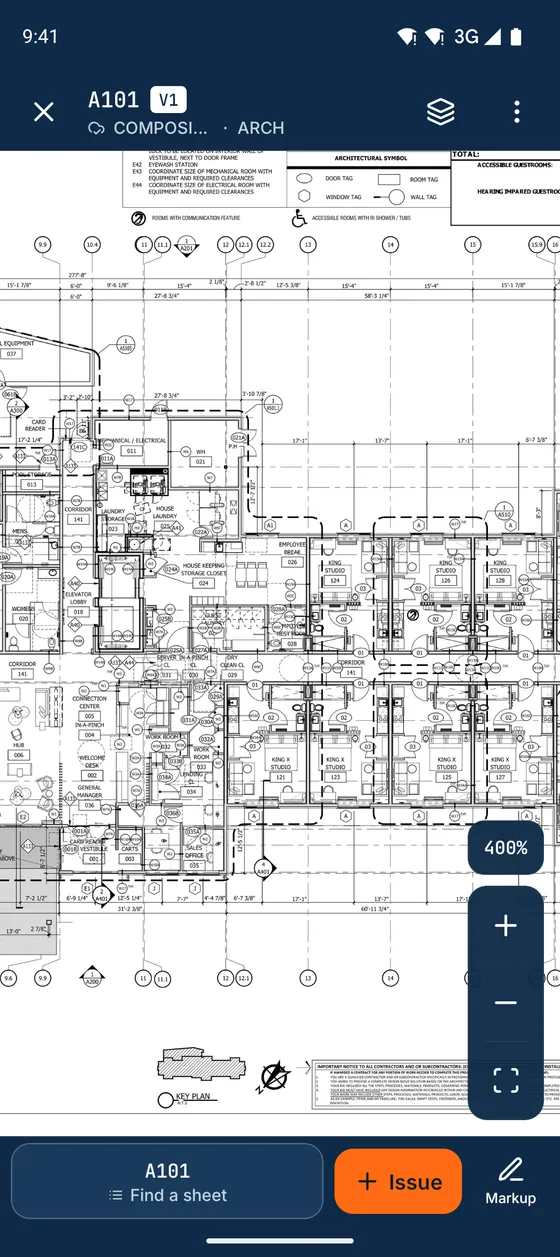
The viewer
When a drawing is uploaded, our servers prepare it for the phone. The app loads only the part you are looking at, sharp at whatever zoom you choose, so an A0 sheet pans as smoothly as a map. In the iPhone and Android apps (coming soon), the sheets you have opened stay on the phone for the site cabin.
Office on the web
The same records in a browser for the office, with the same permissions as the phone. These are real screens from a showcase workspace.
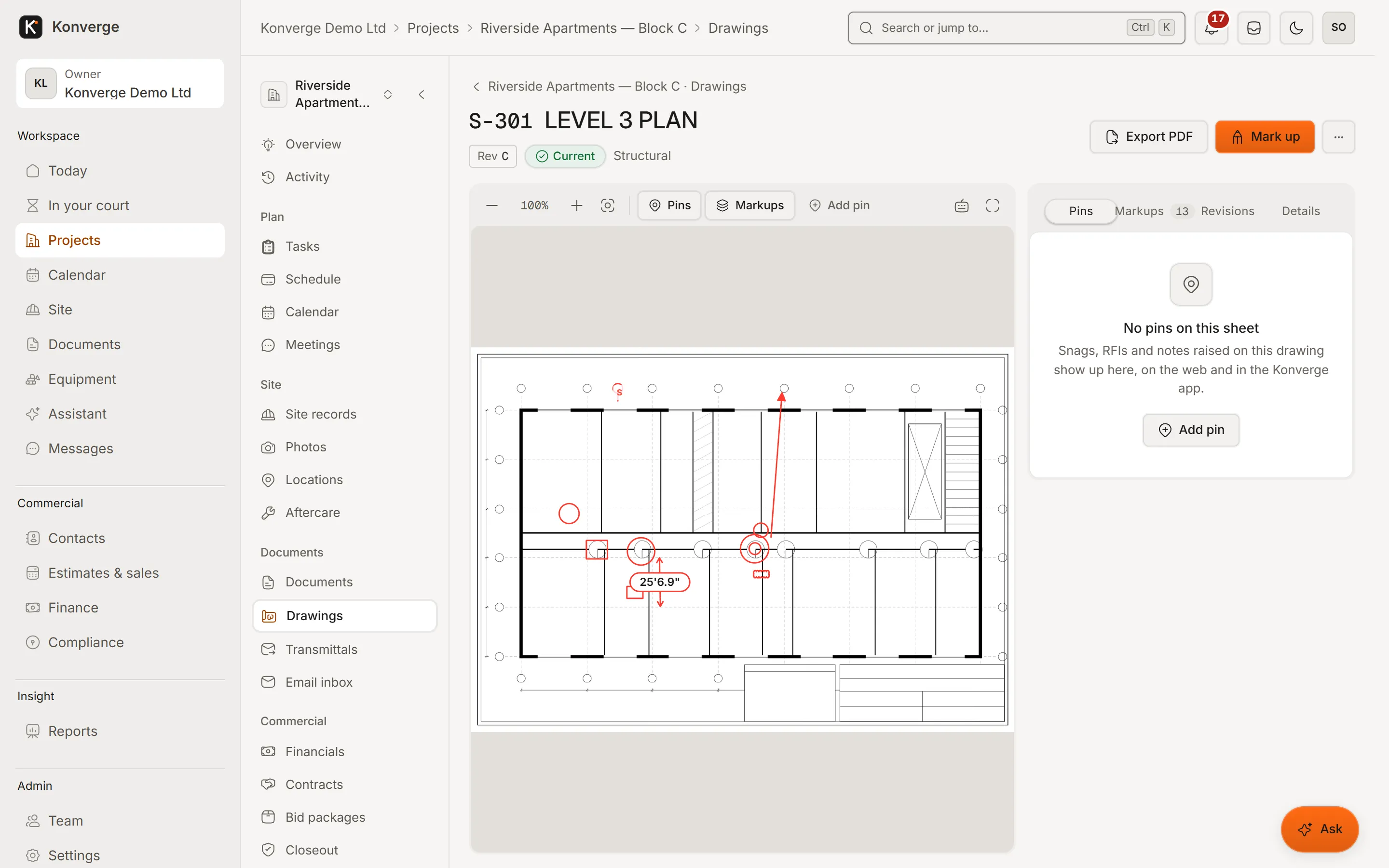
Fig. 01.1A sheet in the browser viewer
- 1Full sheet, markups, dimensions
- 2Pins, markups and revisions
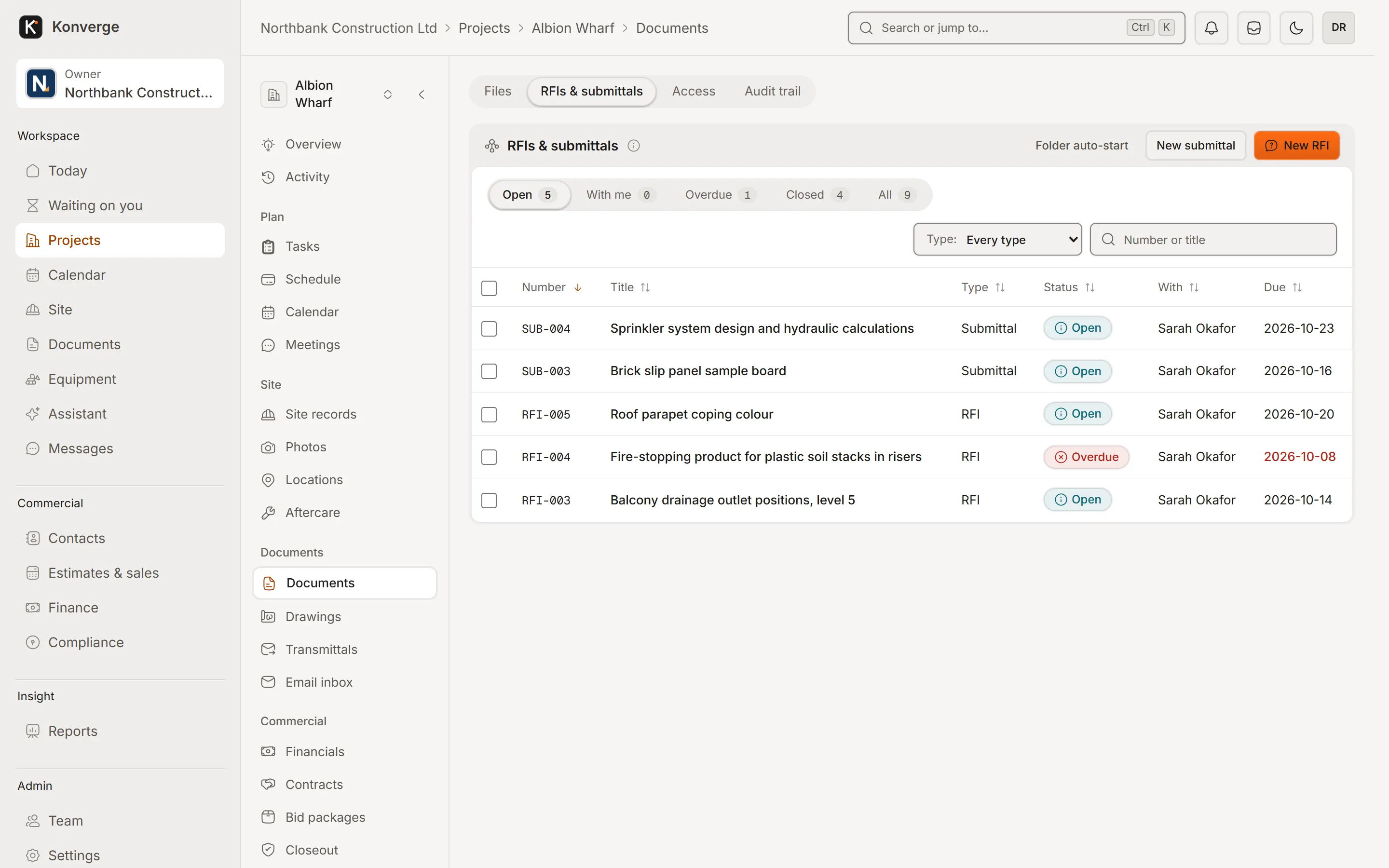
Fig. 01.2RFIs and submittals
- 1RFIs and submittals in one register
- 2Overdue flagged, the ball named
On the phone
Real captures from the demo workspace in the Android app, coming soon to Google Play and the App Store. Until then, the same records work in a phone’s browser, with a connection.
Drawing viewer[01]
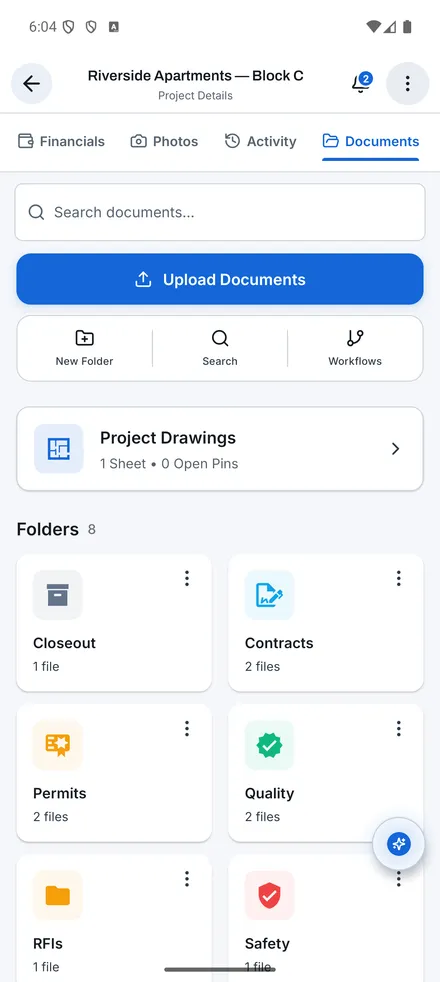
Documents[02]
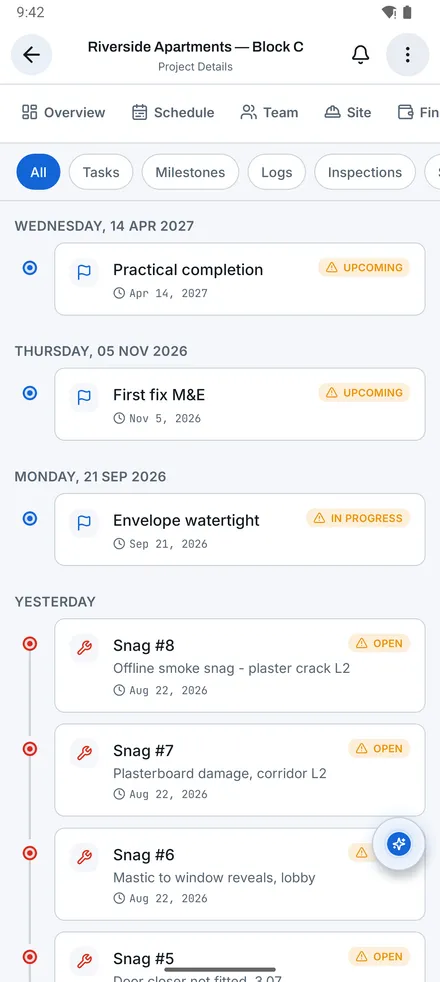
Activity[03]
3 captures
Documents & drawings also opens in the browser, with the same records and permissions.
Questions
01What file types can I upload?
PDF drawings and documents, plus images, spreadsheets and office files as attachments. Multi-page PDFs can be split into sheets on upload, and the app detects drawings by page count, file name and content so they are prepared for the viewer automatically.
02How big can a drawing be?
A0 and larger sheets are fine. Processing happens on our servers; a typical sheet is ready within a minute or two, and you can keep working in the meantime.
03Can subcontractors see every drawing?
Only the folders you grant. Access rules apply per company or per project in priority order, and every change is in the audit trail.
04Does it support ISO 19650?
The app supports ISO 19650 naming, CDE states (WIP, Shared, Published, Archive) and suitability codes S0 to S7 as an early-access feature. It supports the standard; it is not a certification.
14-day free trial with your card at sign-up: cancel before day 15 and you pay nothing. Bring a live job, your drawings and your team, and see it on site the same day.