Module K-02
Field operations is the site diary, rebuilt for a phone in a gloved hand. Photos, daily logs, snags (punch items in the US), inspections, incidents and notes are captured in seconds through one orange button, tagged with where and when. In the iPhone and Android apps (coming soon), they queue on the phone until signal returns.
14 days free · card required · cancel before day 15 and pay nothing
- Module
- K-02
- Status
- Supported
- Included
- 9 parts
- Trial
- 14 days free, card at sign-up
09 parts
Part of the supported product: the part we sell and stand behind today, with full support.
- CaptureK-02.01
One button, photo first
The big capture button opens a sheet with the actions your role uses: photo, voice note, daily log, inspection, snag, field note, task. Every shutter tap stays in the camera; GPS and a place name resolve in the background.
- Daily logsK-02.02
The diary, in two minutes
Date, weather and what was done are the essentials. Crew count, labour and equipment entries, deliveries, visitors, safety notes, delays and photos are one tap away. Draft, submit, approve. Export to PDF.
- SnagsK-02.03
Snags with an owner and a date
Priority, trade, assignee, due date, location, before and after photos. Today shows which snags are awaiting assignment, awaiting the sub, or awaiting verification.
- InspectionsK-02.04
Checklists that score
Safety, quality, environmental, pre-construction and closeout templates with pass, fail and N/A items. Scores are computed as you go, and a failed item can raise a snag with the failures already filled in.
- IncidentsK-02.05
Incidents: time, place, what was done
Injury, near miss, property damage, environmental and security incidents with time, location, description and immediate actions.
- NotesK-02.06
Field and voice notes
Observations, issues, questions and actions, typed or spoken. A note can become a task without retyping it.
- PhotosK-02.07
Photos filed where they belong
File a photo to a project, to a record, or pin it to a location on a drawing sheet. The gallery filters by category, date and what the photo is linked to.
- TimesheetsK-02.08
Clock in, clock out, approve
Crew clock in and out against a project and cost code. Supervisors approve timesheets with an inline reason for any rejection.
- OfflineK-02.09
Queued, not lost
In the phone apps (coming soon), every field record queues on the phone and sends when signal returns. Photos are copied into the app’s own storage the moment they are taken.
Office on the web
The same records in a browser for the office, with the same permissions as the phone. These are real screens from a showcase workspace.
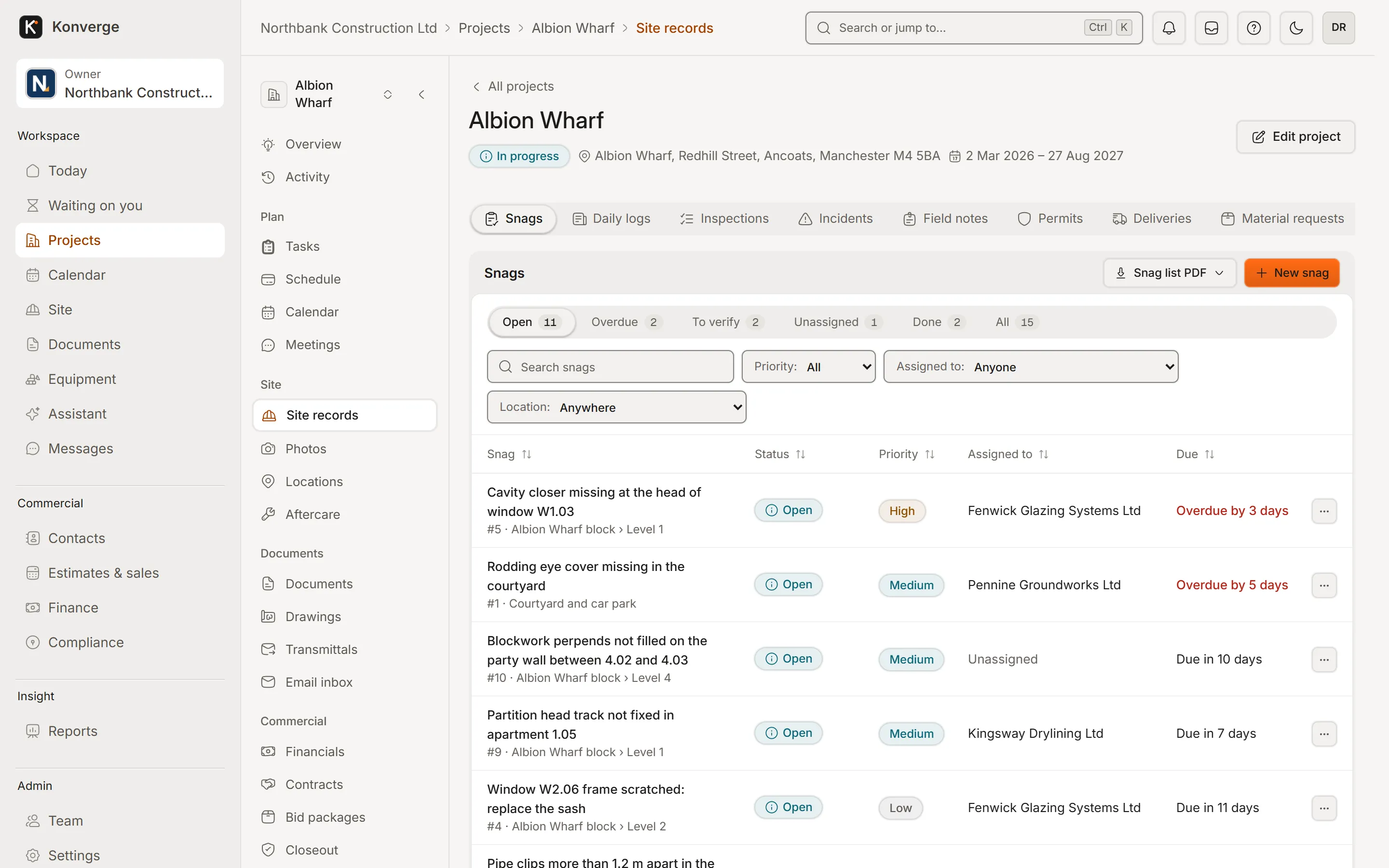
Fig. 02.1Snags sent in from site
- 1Every kind of site record, one place
- 2Filter by status, priority, owner
- 3Overdue in red, an owner on every row
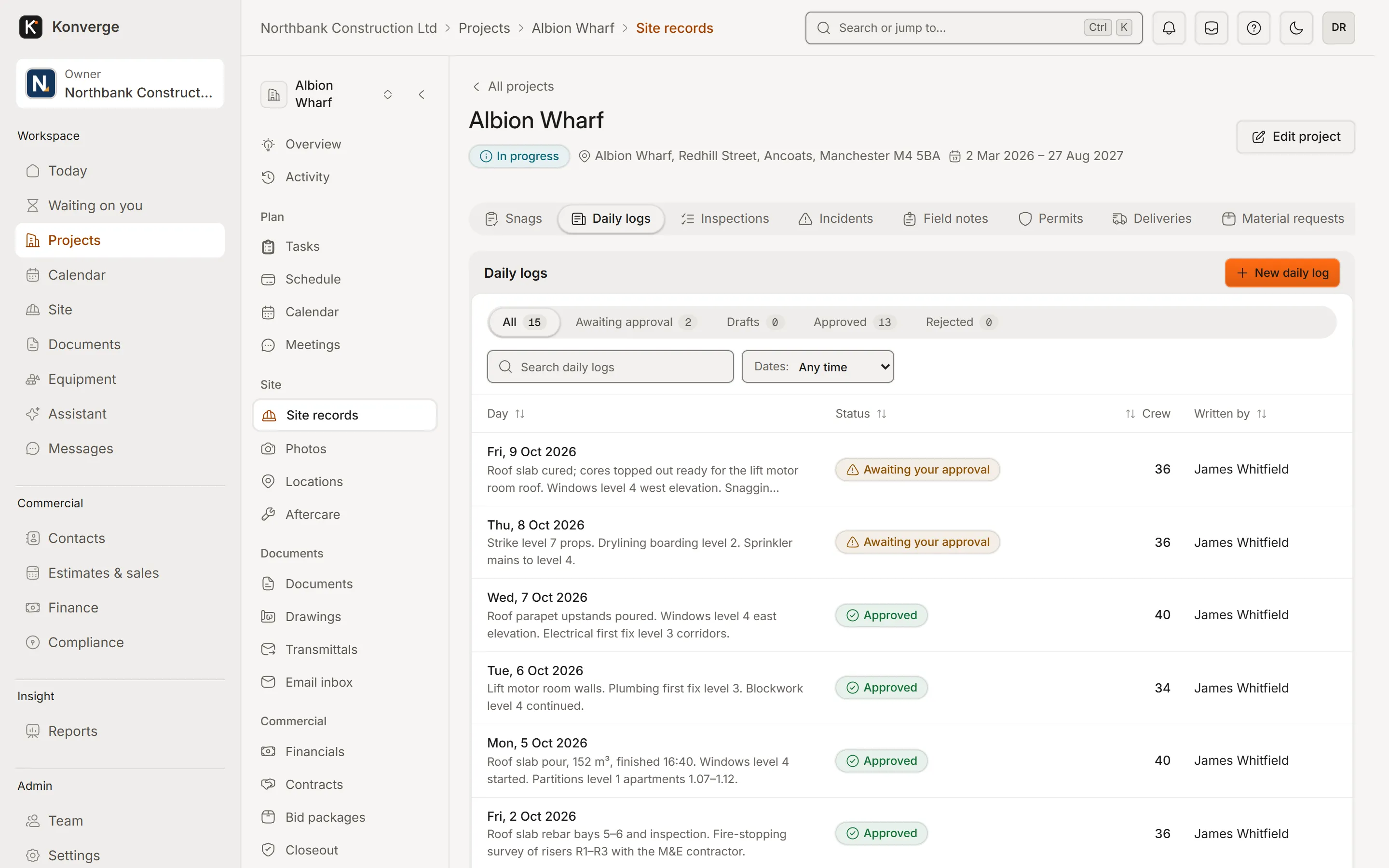
Fig. 02.2Daily logs waiting for approval
- 1Approval queue for every day
- 2Site submits, the PM approves
- 3Crew on site, written by
On the phone
Real captures from the demo workspace in the Android app, coming soon to Google Play and the App Store. Until then, the same records work in a phone’s browser, with a connection.
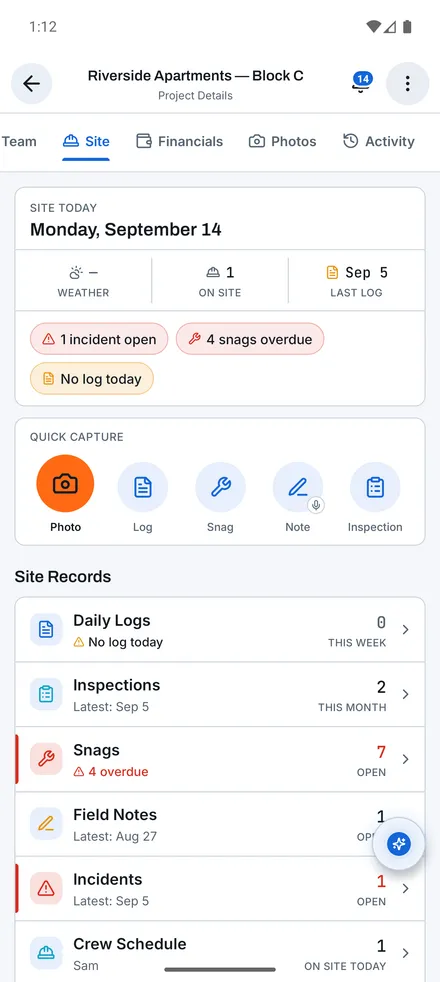
Site hub[01]
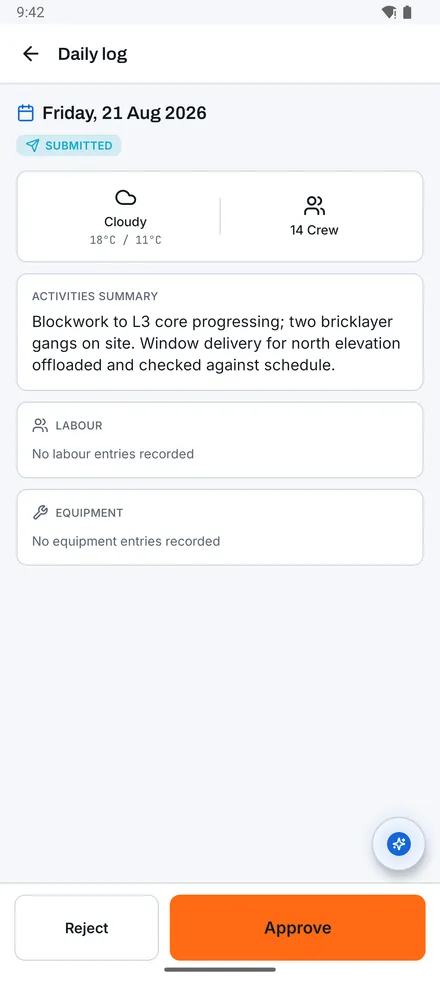
Daily log[02]
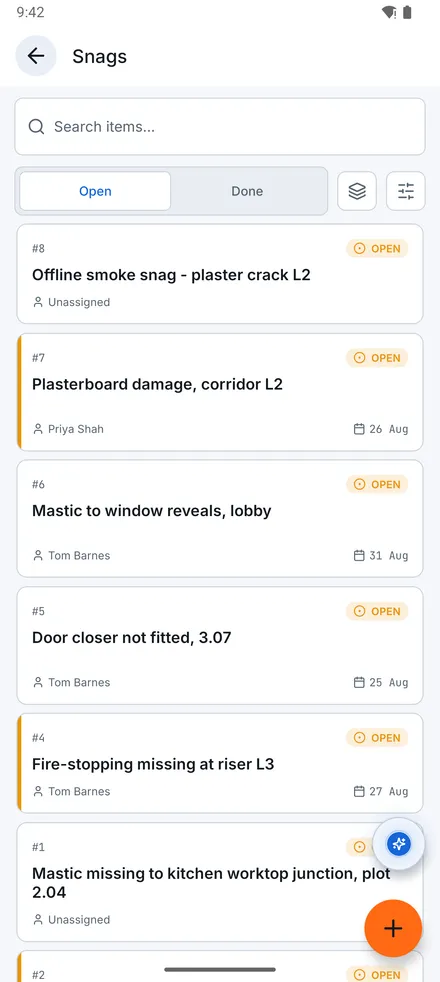
Snag list[03]
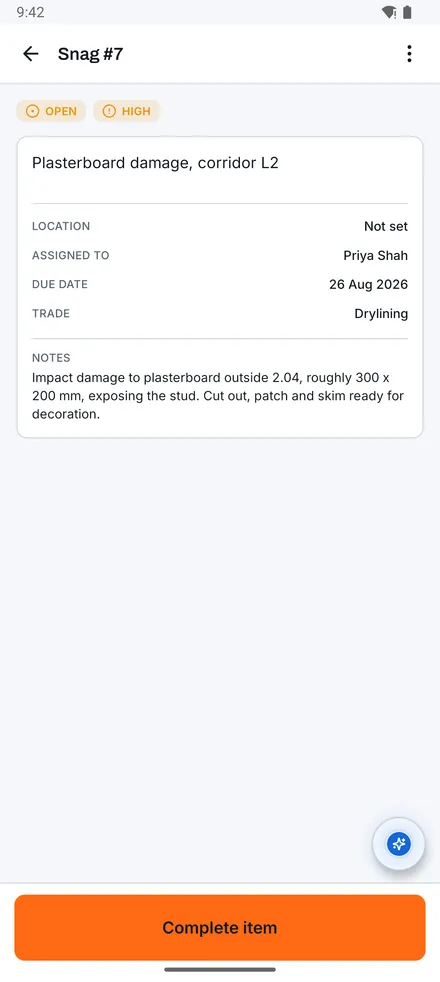
Snag #7[04]
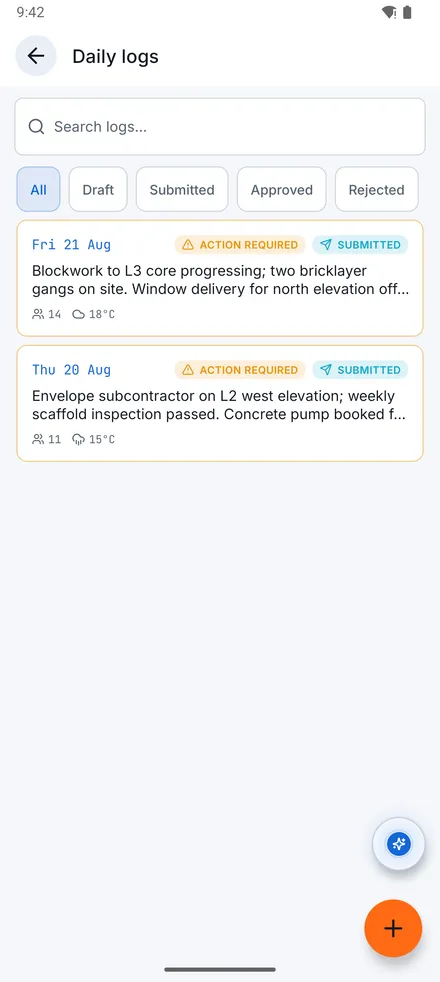
Daily logs[05]
Questions
01Do I say snag or punch item?
Either. The app uses region-configurable terminology: snag list in the UK, punch list in the US.
02Does the camera need signal?
Not in the iPhone and Android apps (coming soon): photos, logs, snags, inspections and notes all work offline and sync later. The only thing that needs a connection there is placing a new pin on a drawing; the app falls back to a queued project photo and tells you. Until the apps are out, Konverge runs in the phone’s browser, which needs a connection.
03Can field staff see project costs?
Not unless you grant it. Financial figures are masked separately from whether someone can see a screen at all.
14-day free trial with your card at sign-up: cancel before day 15 and you pay nothing. Bring a live job, your drawings and your team, and see it on site the same day.